Add staff and set pay rates
Invite instructors to your studio and agree how they are paid.
Open Staff in the sidebar and choose Add instructor.
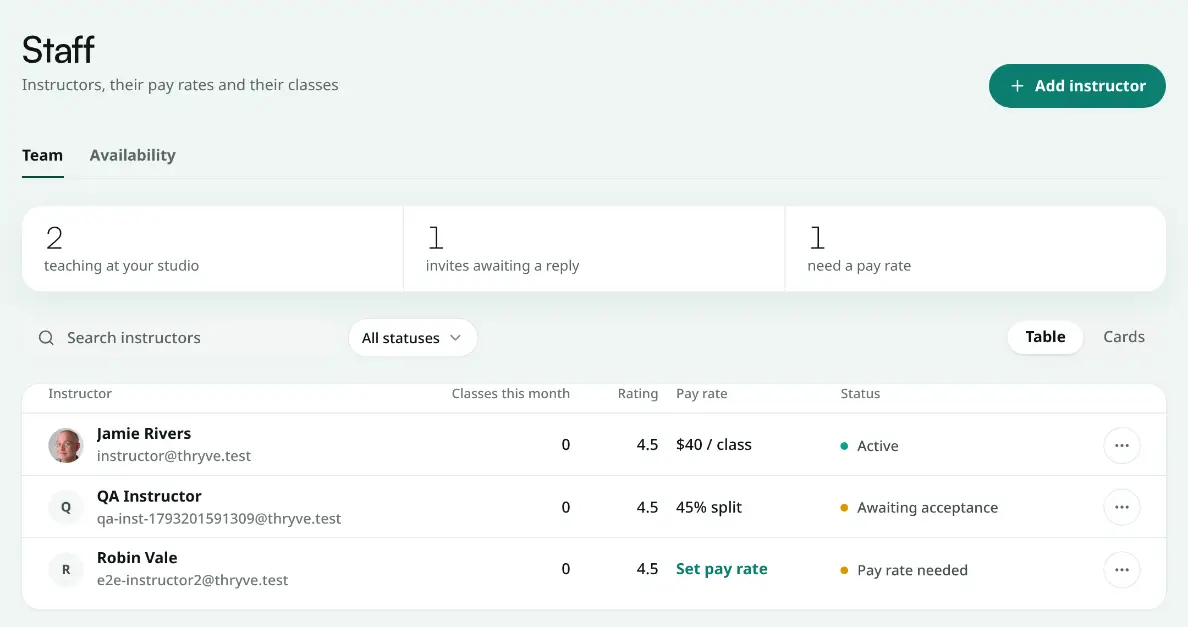
Staff shows who still needs a pay rate. Enter their first name, last name and email, then choose Add instructor. They get an email invite.
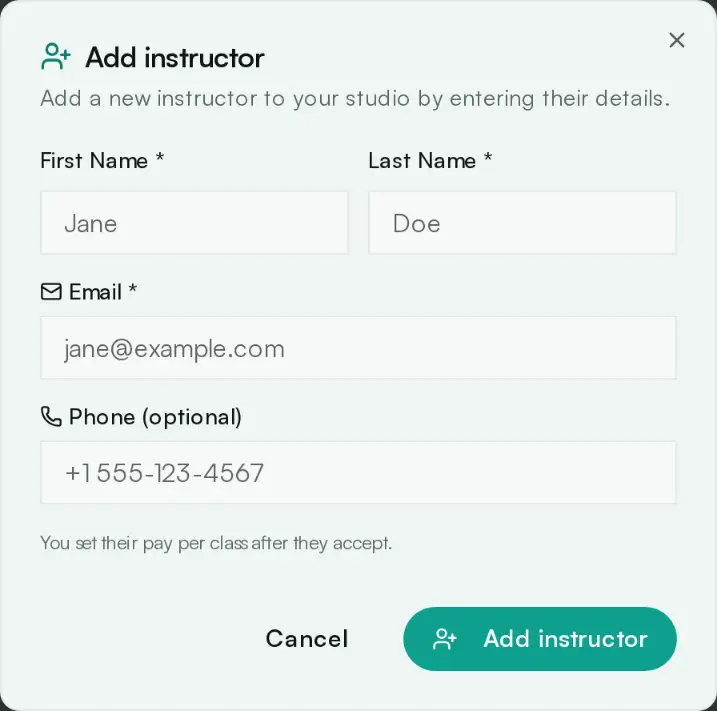
Invite an instructor by email. Once they are on your team, choose Set pay rate on their row.
Pick a Payment Method: Revenue Split, Hourly Rate or Flat Per Class, and enter the amount.
Set the Effective Date, Payout Timing and Relationship Type. Add cancellation or no-show rules if you have them.
Choose Send for Approval. The instructor accepts the terms in their account, and from then on their classes count towards payroll.
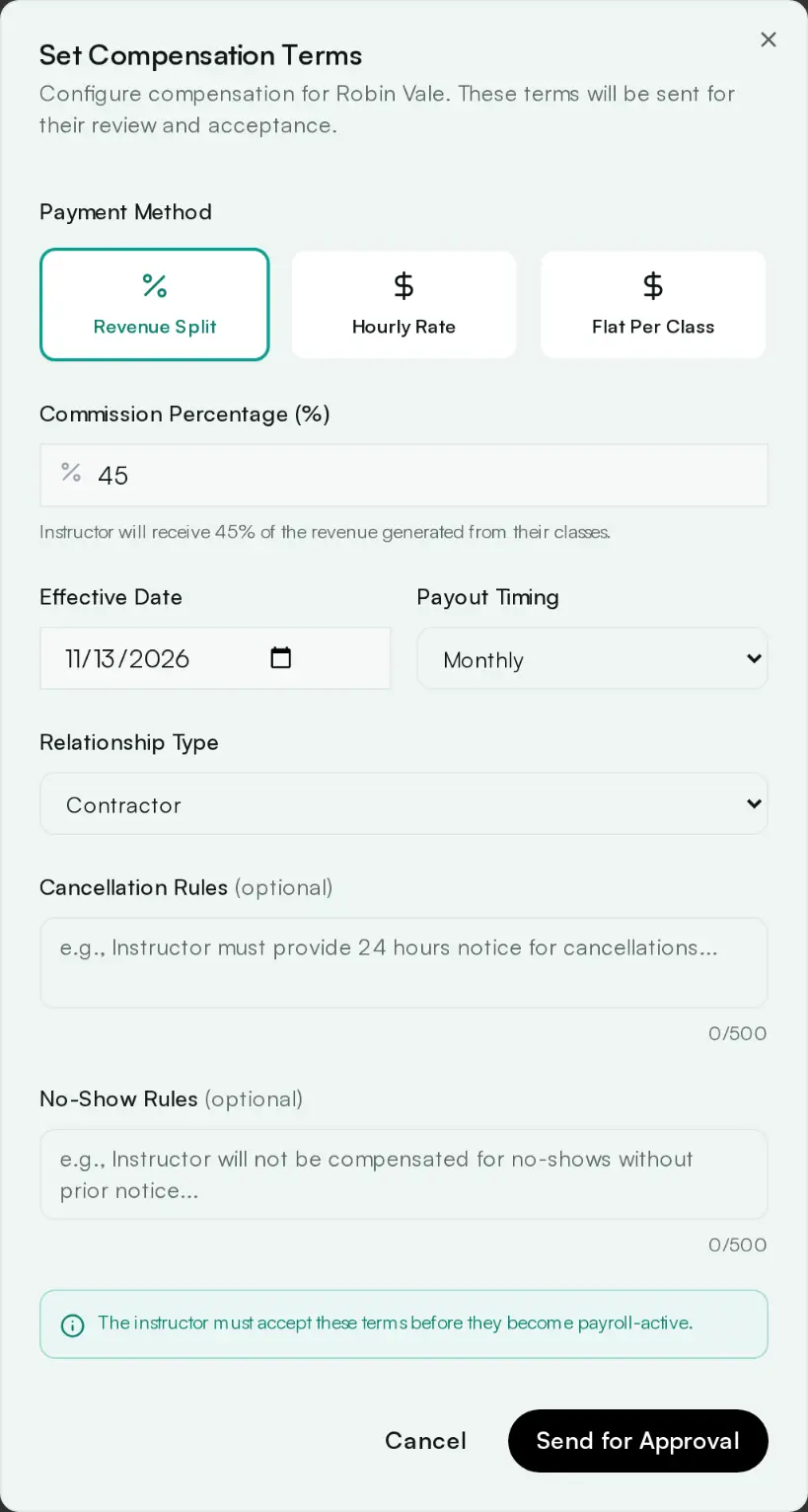
The pay terms the instructor is asked to accept.
To change a rate later, choose Change pay rate from the menu on their row. The new terms go to the instructor for approval in the same way.